Tan Studio
I bought a Kaffelogic Nano 7 to roast coffee at home. Then I opened the software.
It had that Qt desktop-app feel, and it was awful to use. I also had to keep my computer connected by USB to collect the roaster's data. I wanted something pleasant to use, and I wanted my computer back.
So I decided to build my own. Entirely by voice, using GPT Live through Codex's voice interface. I described what I wanted, looked at the result, and talked through what to change next.
That became Tan Studio: a place to see my roasts, keep track of coffee, and write down what I thought of each cup. The experiment was to see how far I could take a product just by talking through what I wanted.
Reading the Nano
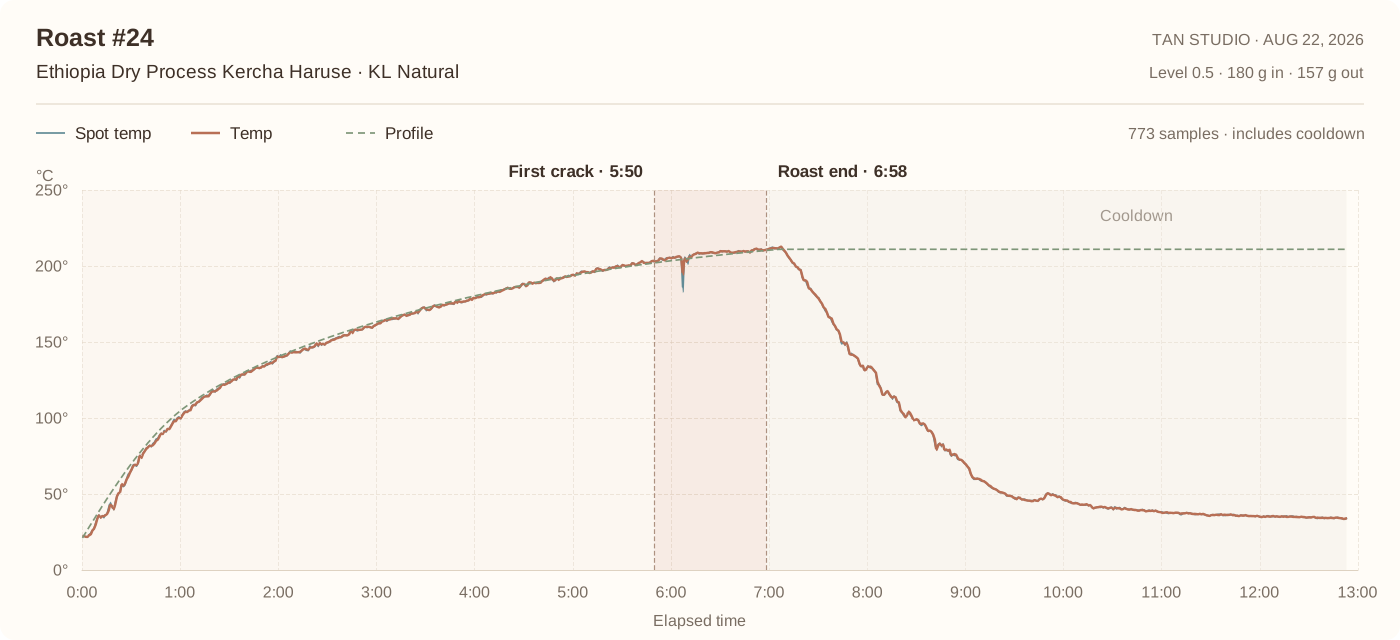
The first job was to get the same information as Kaffelogic Studio. A nicer chart would not help if it showed a different roast.
The Nano stores profiles in .kpro files and roast logs in .klog files. A profile describes the intended temperature and fan curves. A log records what happened, including measurements, timing, and roast events.
I started with the existing app, native files, and USB traffic. The Type-C Nano exposes a serial connection and speaks SASSI, a text protocol with checksums and numbered file chunks. The service negotiates a session, lists the files, and downloads them. If the roaster has locked its files during an operation, synchronization waits.
I keep the original bytes alongside the parsed records. Importing the same file twice does not create another roast. If a file cannot be read safely, it stays outside the notebook with an error attached. That lets me fix a parser without losing the source.
The profile curves needed care too. They use cubic Bézier controls, so joining their points with straight lines would change the intended shape. I checked the rendered curves and imported logs against Studio. The recorded device comparison covers 16 profiles and 15 logs, including matching source files byte for byte.
Losing the cable
The cable problem needed hardware. I used an M5Stack AtomS3 Lite, an ESP32-S3 board with Wi-Fi and a USB-C port. The Nano powers it through the same cable that carries the data.
The Atom acts as a USB device when attached to the Nano. It forwards the USB traffic over Wi-Fi, leaving the Rust service to handle SASSI and import the records. I did not need a second copy of the notebook beside the roaster.
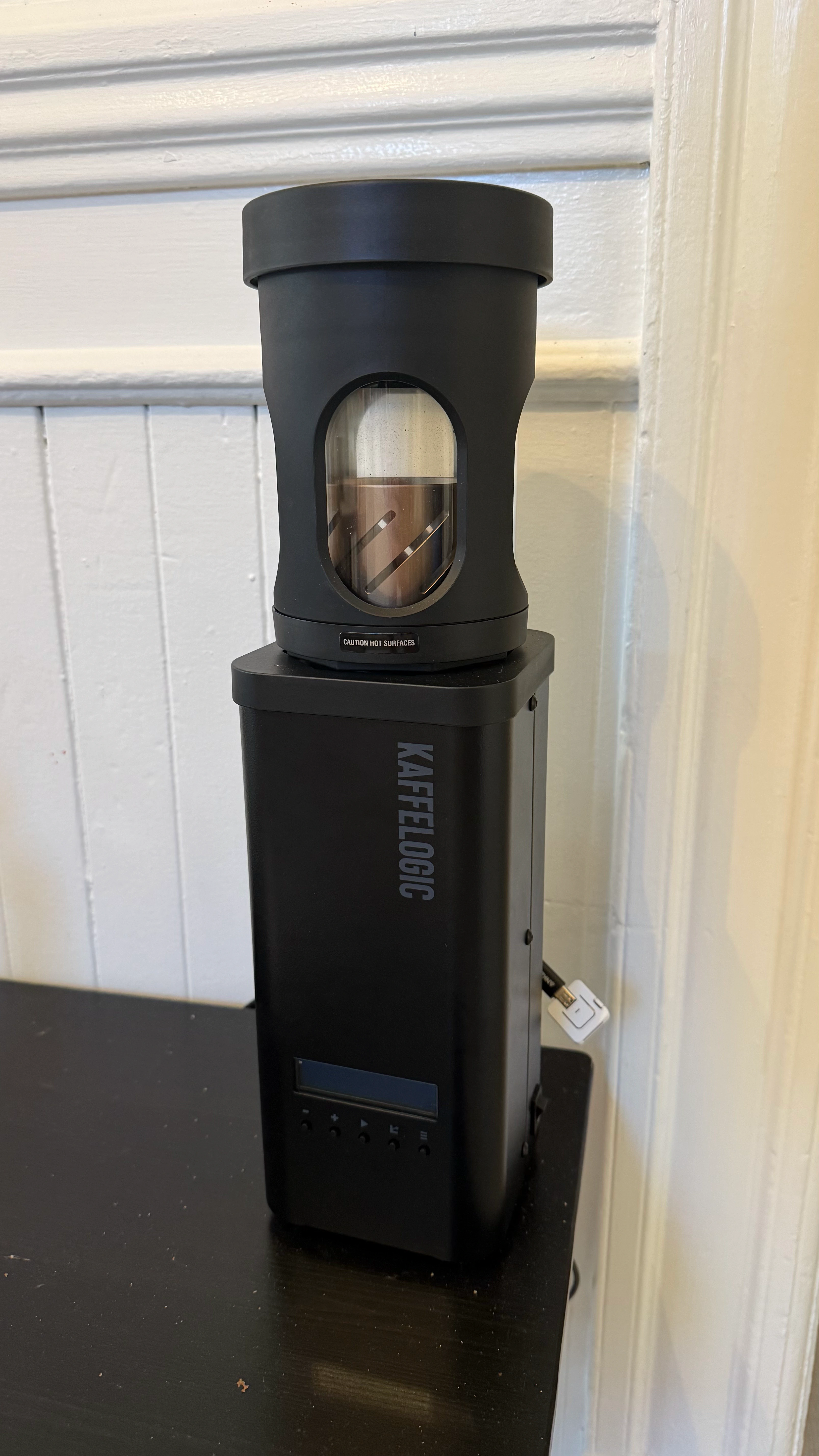
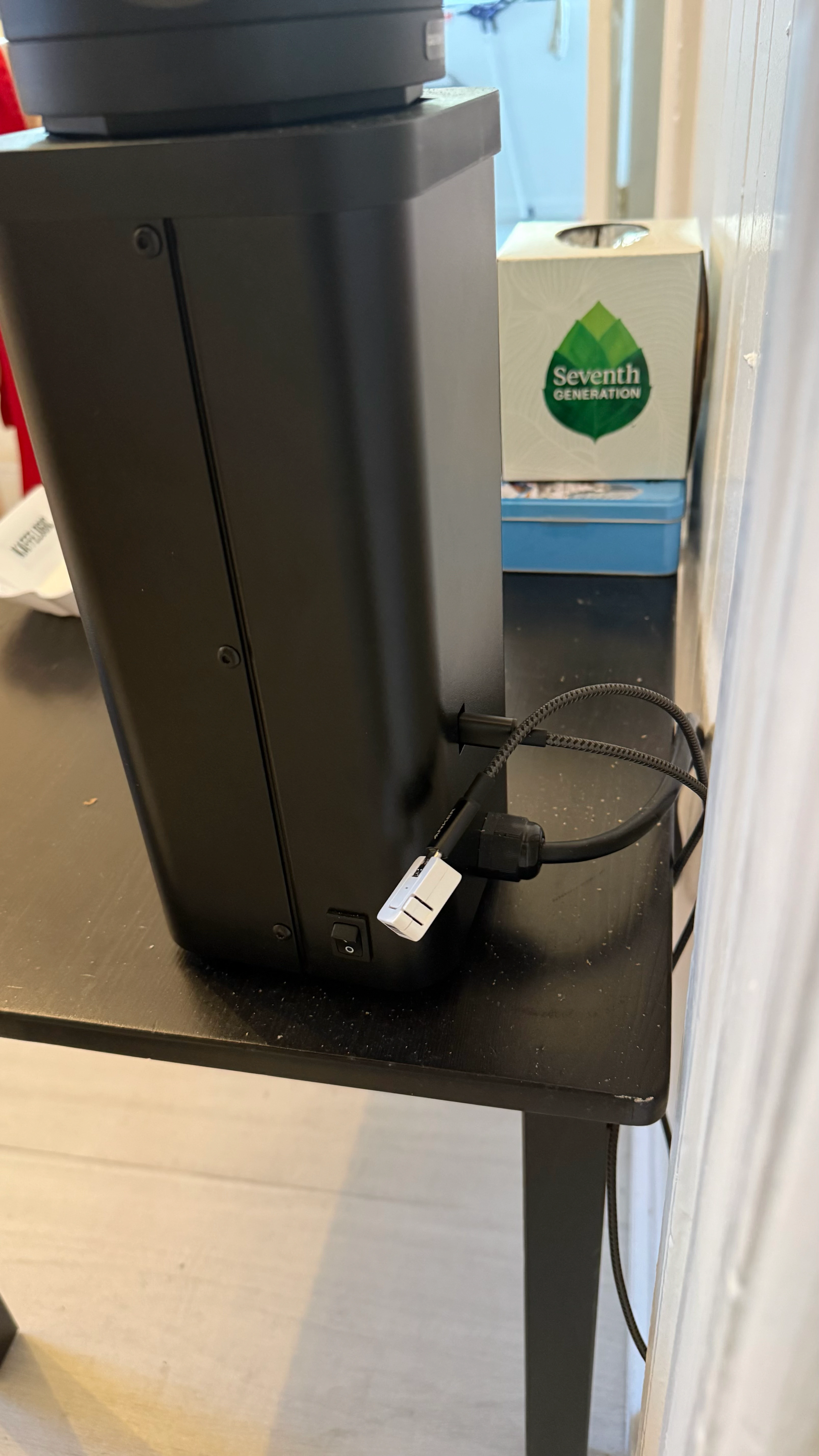
The service uses the same session code for a local USB cable and a bridge connection. Its transport contract is small:
pub(crate) trait SessionTransport: Read + Write + Send {}
impl<T: Read + Write + Send> SessionTransport for T {}
The adapter supplies bytes. The session owns negotiation, checksums, file transfers, and timeouts. A simulated Nano uses this contract too, so fragmented packets and reconnects can be checked without a hot roaster on the desk.
The Nano can send its first message before the Atom has joined Wi-Fi. An 8 KiB bootstrap buffer holds that early traffic. Each new handshake has a fresh checksum seed, so the service waits for a current request before replying. The buffer is for connection setup; it does not store an entire roast through a network outage.
Connecting the bridge
Setup happens once over USB. The browser writes the selected Wi-Fi network and a short-lived claim to the Atom through Web Serial. After that, the Atom opens an outbound WebSocket connection to studio.tan.coffee over TLS. There is no port to open on the home router.
The claim expires after ten minutes and can be used once. On its first connection, the Atom exchanges it for a device token, which it saves for later connections. The service keeps a hash of that token. Revoking the bridge closes its current session and prevents it from reconnecting.
The firmware checks the service's TLS certificate and hostname. The service checks the device token before accepting Nano traffic. These are different jobs: one checks where the Atom connected, and the other checks which bridge connected.
Both ends restrict commands sent to the Nano to the verified read-only message types. Tan Studio can read profiles and logs. It cannot upload a profile, change the heater, or start a roast. I wanted the notebook to be useful before giving it control of the machine.
The one-cable hardware test imported the Nano's profiles and logs over local Wi-Fi. The hosted firmware adds TLS and reconnect handling. I still treat unattended recording through outages as unfinished work.
From a roast to a cup
Once that worked, I started wanting more from the notebook. Which beans did I use? How did I roast them, how long did they rest, how did I brew them? And did I actually like the coffee?
I tend towards bright acidity and stone-fruit flavours, especially peach and apricot. I want to record enough variations over months and years to understand what produces those cups for me. Each brew has its recipe, tasting notes, and reminders for next time, linked back to the roast.
A roast keeps a snapshot of its profile. Editing that profile later must not change the history of a cup I already drank. When a finished log arrives, the import can match it to the planned roast and keep the coffee, adjustments, and notes I entered beforehand.
Tasting belongs to the brew. The same batch can produce a different cup with another grind setting, water temperature, or rest time. I want to compare those cups without copying the roast into a new record each time.
The pantry uses recorded roast yields and brew doses to estimate what remains. It also shows rest time. Those are estimates from the notebook; coffee used without a record still has to be accounted for.
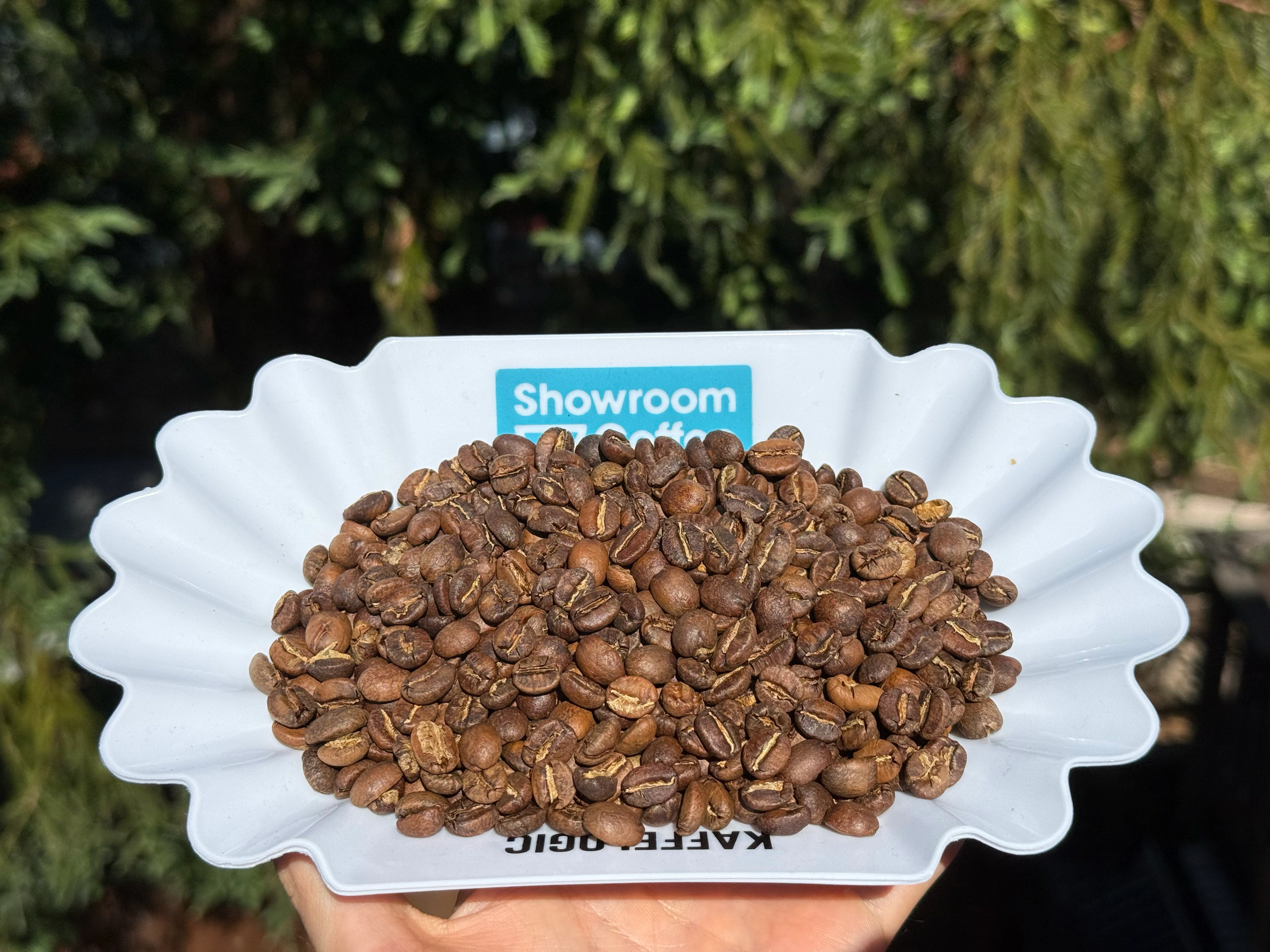
“Light acidity with strong fruity profile.
Peach notes”
Ethiopia Buku Abel
20 g coffee · 300 g water · 95/100
“For the next brew, consider a coarser grind setting around 5.3.”
Kenya Kiambu Spike AA
Grind setting 5.1 · drawdown 4:30
“I would try to bring total brew time down to 3min next time”
Ethiopia Kercha Haruse
40 g coffee · 630 g water · drawdown 4:45
These are excerpts from my brew notes. The cups I liked, and the things I wanted to try next.
Talking to the notebook
I also built a Codex plugin so the notebook can be used through an agent. It can read the pantry, inspect a roast, record a brew, and attach notes or photos. It uses the same API as the web interface, so a brew entered through Codex has the same defaults and checks as one entered in the form.
These are some of the notebook operations behind the plugin:
export interface TanStudioGateway {
	pantry(): Promise<Pantry>
	roast(id: number, maxPoints?: number): Promise<RoastDetail>
	createBrew(input: BrewCreate): Promise<Brew>
	createNote(input: NoteCreate): Promise<Note>
}
The agent tools accept grams and degrees Celsius. The service validates the records and their links. The plugin has no raw serial tool, and an API token cannot enroll a bridge. I can let an agent update the notebook without giving it control of the roaster.
Eventually, I'd like an AI to use that history to choose and buy beans I love, then tune the roasting and brewing to my taste. That part is still ahead. First, I need the history of what I enjoyed, and why.
Try it
The hosted notebook is my own account. To run Tan Studio locally with your Nano, start with the source:
git clone https://github.com/xavierroma/tan-studio.git
cd tan-studio
bun install
bun run dev
This needs Bun and Rust. Quit Kaffelogic Studio, connect the Nano by USB, and open Devices → Synchronize at http://127.0.0.1:1420.
For the wireless setup:
| Qty | Part | Buy |
|---|---|---|
| 1 | Kaffelogic Nano 7 with USB-C | Kaffelogic |
| 1 | M5Stack AtomS3 Lite, C124 | M5Stack |
| 1 | Short USB-C data cable | Adafruit |
The bridge firmware guide covers flashing and USB setup. Its hosted address is fixed in the firmware, so a separate installation needs its own service configuration. The bridge is still a personal build, not a plug-and-play accessory.
The notebook is at studio.tan.coffee, and the source is on GitHub.